
The Ultimate Cheat Sheet for Professionals Who Use Excel Every Day
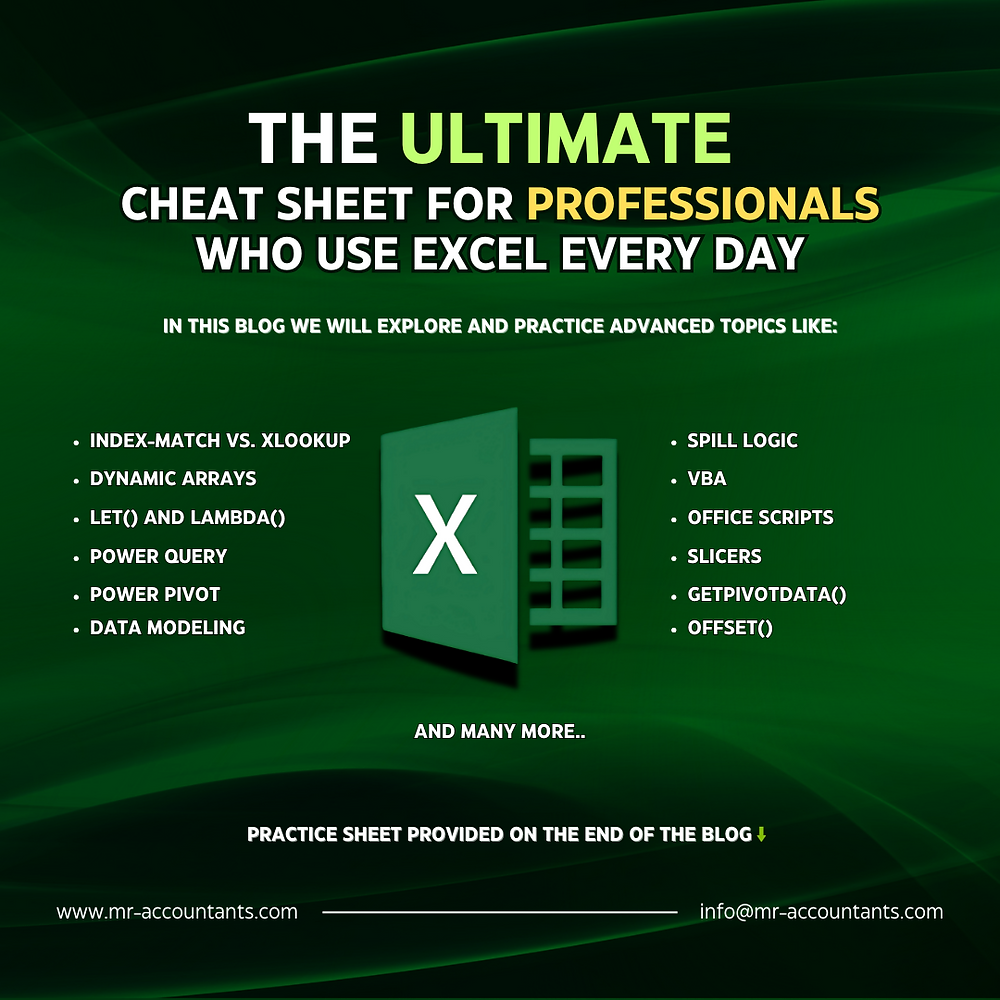
Excel is no longer just a spreadsheet tool — it's your daily co-pilot. If you're a professional who lives in Excel, this advanced guide is tailor-made to supercharge your workflow. From dynamic dashboards to automated reporting and AI-powered formulas, here’s everything you need to take your Excel game to the next level.
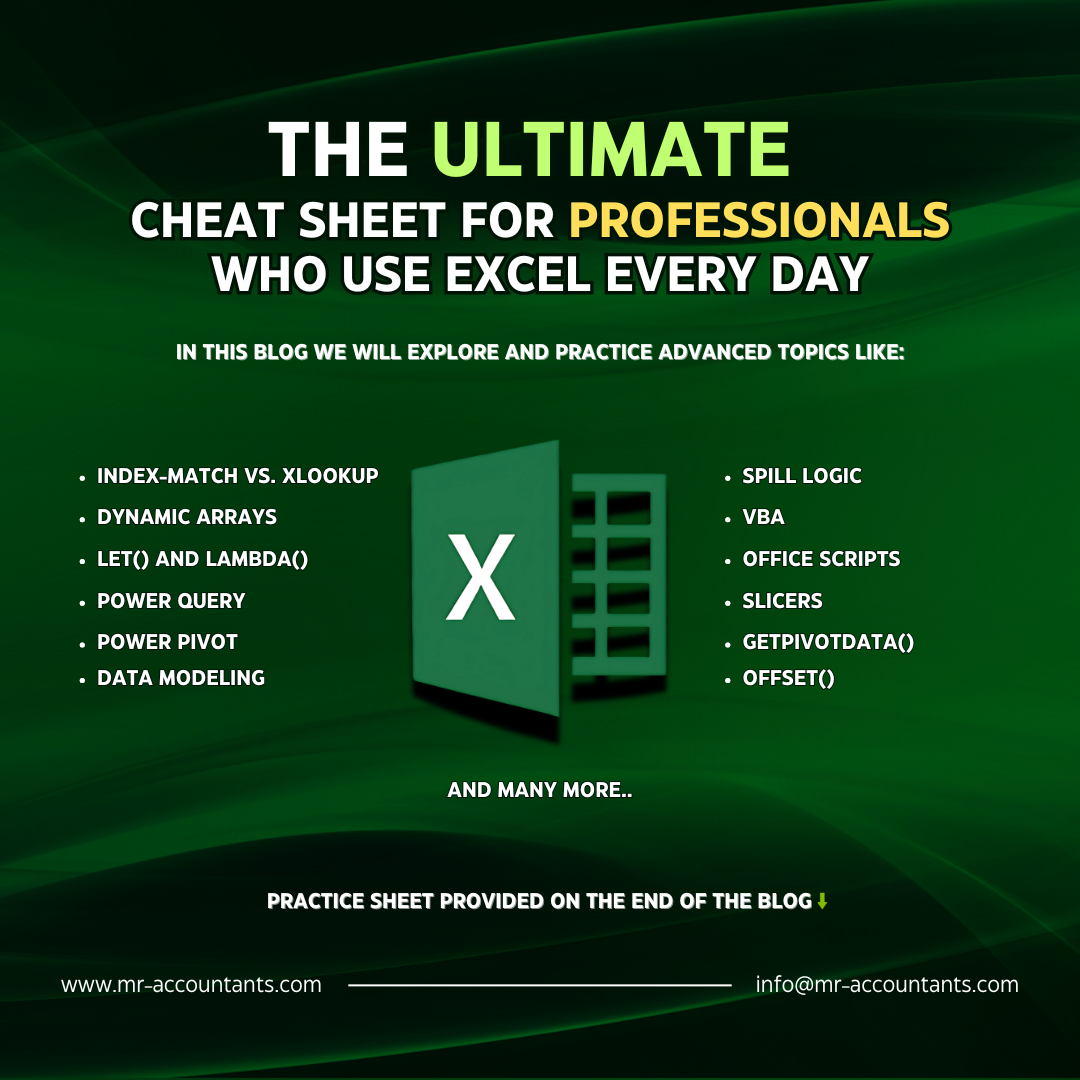
📌 Table of Contents
Advanced Formulas Every Pro Must Know
Power Query: Transform Data Like a Magician
Power Pivot & Data Modeling
Dynamic Arrays & the Future of Excel
Automating with VBA & Office Scripts
Building Interactive Dashboards
Real-Time Data with Excel + Power BI
Collaboration in Excel (Microsoft 365 Tips)
Productivity Add-ins You Shouldn't Ignore
Bonus: AI in Excel — Copilot & Beyond
Want a downloadable cheat sheet or ready-to-use templates from this post?
Check this files:
Advanced_Excel_Templates_with_Instructions
Excel_Formulas_Cheat_Sheet.pdf
1. 🧠 Advanced Formulas Every Pro Must Know
✅ INDEX-MATCH vs. XLOOKUP
Forget VLOOKUP. Use XLOOKUP() — it's faster, more powerful, and flexible.
=XLOOKUP("Apple", A2:A100, B2:B100, "Not Found")
✅ Dynamic Arrays
No more CTRL + SHIFT + ENTER. Embrace spill formulas:
=FILTER(A2:B100, B2:B100 > 500)
=SORT(UNIQUE(A2:A100))
✅ LET() and LAMBDA()
Turn Excel into a programming language.
=LET(x, A1*2, y, x+5, y)
Create your own custom functions with LAMBDA().
2. 🔄 Power Query: Automate Data Cleaning
Remove duplicates, change data types, pivot/unpivot tables with clicks.
Connect to sources: SQL, SharePoint, APIs, Web pages.
💡 Tip: Record a Power Query macro instead of cleaning data manually every time.
3. 🧮 Power Pivot & Data Modeling
If you’re working with big data:
Build relationships between tables.
Use DAX formulas for calculated columns/measures:
TotalSales = SUM(Sales[Amount])
ProfitMargin = DIVIDE(SUM(Profit), SUM(Sales))
Think of it like having a lightweight version of a SQL database right inside Excel.
4. 📊 Dynamic Arrays & Spill Logic
New Excel users miss this!
Create dynamic dropdowns using SORT(UNIQUE(...)).
Combine with SEQUENCE, RANDARRAY, and BYROW for powerful modeling tools.
5. 🤖 Automating with VBA & Office Scripts
VBA:
Automate repetitive tasks (emailing, formatting, file exports).
Sub AutoSavePDF()
ActiveSheet.ExportAsFixedFormat Type:=xlTypePDF, Filename:="C:\Report.pdf"
End Sub
Office Scripts (for Microsoft 365):
Modern JS-based scripting — works in the cloud!
6. 📈 Building Interactive Dashboards
Use Slicers, PivotTables, and Timeline Controls.
Add Form Controls or ActiveX Controls for interactivity.
Use conditional formatting to highlight trends.
Combine with GETPIVOTDATA() for advanced customization.
7. 🔗 Real-Time Data with Power BI + Excel
Use Analyze in Excel to pull Power BI datasets into Excel.
Link your Excel workbook to live dashboards.
Perfect for finance, operations, and real-time KPI reporting.
8. 🤝 Collaboration with Microsoft 365
Use Sheet Protection with Permissions.
Version history lets you rollback changes.
Co-author in real-time with comments and tagging (@mention).
9. 🧩 Must-Have Add-ins for Power Users
Kutools for Excel: 300+ extra tools.
ASAP Utilities: Quick hacks and automation.
Power BI Publisher for Excel: Pin Excel visuals to dashboards.
Inquire Add-in: Analyze workbook structure, formulas, and inconsistencies.
10. 🧠 Excel + AI: The Next Frontier
Use Excel Copilot (Microsoft 365) to ask questions in plain English.
AI recommends charts, finds anomalies, summarizes data.
Combine with ChatGPT for formula suggestions and explanations.
💼 Real-Life Use Cases
✅ Financial Modeling:
Scenario analysis with CHOOSE(), IF(), SWITCH() and data tables.
Automated cash flow forecasts using OFFSET() and named ranges.
✅ Project Management:
Gantt charts using conditional formatting + formula logic.
Status trackers with progress bars.
✅ Sales & Marketing:
Funnel analysis, trend projections, territory heatmaps.
🚀 Pro Tips to Excel Like a Boss
Always use named ranges for clarity.
Document formulas using N("comment") trick.
Use CTRL + \, F5 > Special to audit spreadsheets.
Master shortcut keys (ALT + ;, CTRL + SHIFT + L, F9 to evaluate parts of formulas).
📚 Exercise
Mastering Excel is not about memorizing formulas — it’s about thinking in Excel. Combine your business logic with the tool's capabilities, and you can automate 80% of your daily workload.
Want a downloadable cheat sheet or ready-to-use templates from this post?
Check this files:
Advanced_Excel_Templates_with_Instructions
Excel_Formulas_Cheat_Sheet.pdf